Your PocketBase has knobs now: runtime flags and a syncable superuser
Your PocketBase has knobs now: runtime flags and a syncable superuser
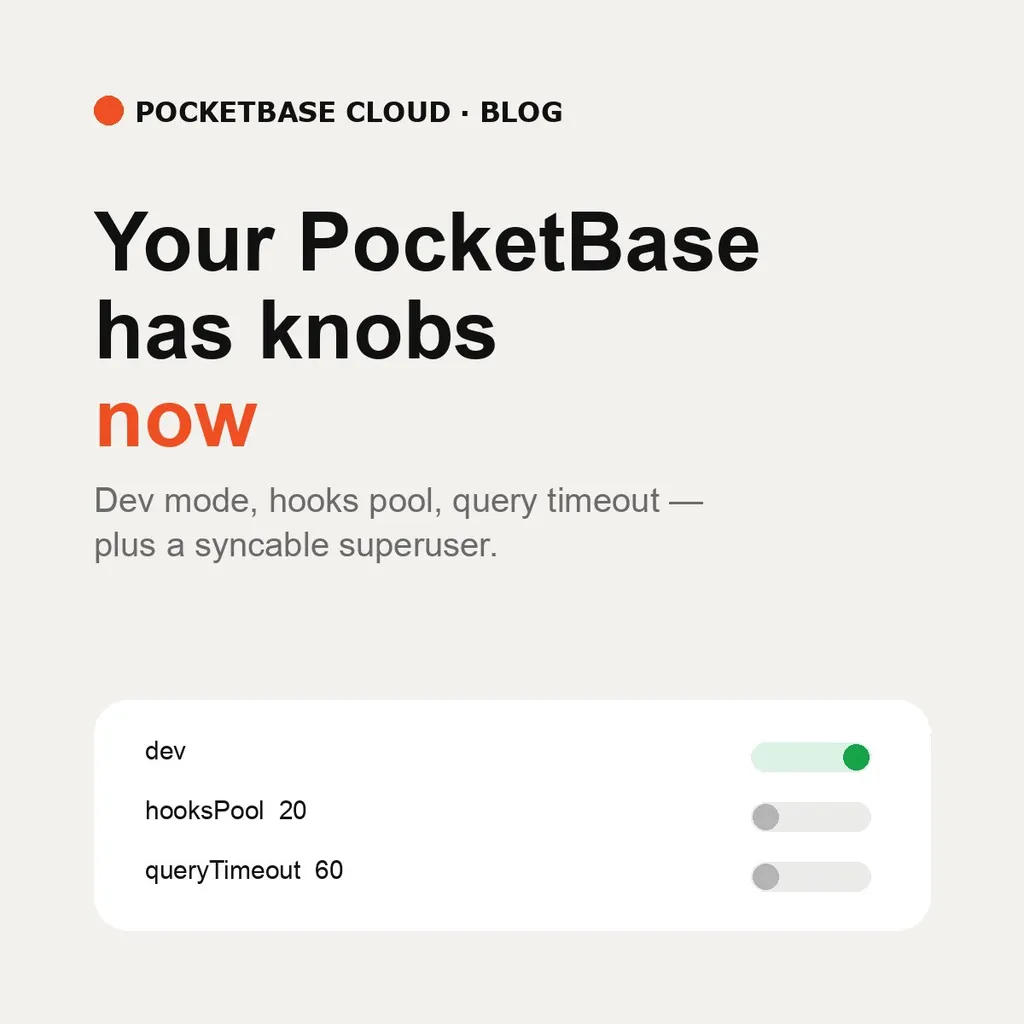
PocketBase ships with sensible defaults, and for a long time the platform treated them as fixed: dev mode off, 15 hooks workers, a 30-second query timeout. Those defaults are still right for most instances — but “most” is not “all”, and the workarounds (living with verbose logging off while debugging, hitting the query timeout on a heavy migration) were annoying enough that we exposed the three flags that matter:
pbc pocketbase config get --name my-app-db
# {"dev": false, "hooksPool": 15, "queryTimeout": 30}

pbc pocketbase config set --name my-app-db --dev true
pbc pocketbase config set --name my-app-db --hooks-pool 20 --query-timeout 60
Dev mode turns on request log traces and verbose output — the thing you want while debugging and never want in production. Hooks pool sizes the concurrent JS engine pool: raise it when hooks do real work under load, lower it when the instance is idle and you’d rather save memory. Query timeout caps a single query’s execution time; long migrations and heavy reports are what push against the default 30 seconds.
A running instance restarts when flags change — that is the point, since these are process flags, not database rows — and the portal says so on the save button rather than letting you discover it. Set them at creation too:
pbc pocketbase create my-app-db --dev true --hooks-pool 20Or under Advanced Configuration → Runtime Flags on the create form and the instance detail page.
The superuser you can fix without the old password
The second half of this release is about the credential everyone loses exactly once: the instance superuser. The platform-managed account can now be rotated without knowing the current password, from either surface:
pbc pocketbase superuser sync --email [email protected] --password 'new-password-here' --name my-app-dbNew email adds an account, existing email updates it, and every other
superuser on the instance is left alone. In the portal it is Advanced
Configuration → Admin Credentials: email, new password (at least 12
characters), save. The same credentials keep working through pbc admin login for everything inside the instance. Full guide:
Upserting a Superuser Credential.
Both are documented in Managing Your Instance.